What is Occult?
Occult is a powerful systems programming language, meant to give the user the full control and power of a C-like language, but with a modern syntax and modern features, making it easy to write, read, and learn.
Building the Language
Let's start out with how to build the compiler.
Linux Build Instructions
On Linux based systems, it's fairly straightforward to build Occult.
Prerequisites
Occult has some prerequisites you need to make sure are installed before you compile the language.
- Language version of C++ should be C++23 or higher
clangcmakemakegit
Just to note, the reason for clang to be used instead of gcc is kind of technical, but to explain it in short if the language is compiled using gcc Occult just doesn't work as intended, and fails to execute a lot of the code that you throw at it, note the generated machine code that the language (Occult) generates is the same regardless of which compiler you use to build it.
Regardless, in the CMakeLists.txt it enforces clang++ / clang.
Build Commands
The commands you have to run to compile Occult.
Linux Build Command
git clone https://github.com/occultlang/occult.git && cd occult
chmod +x build.sh
./build.sh
Windows Build Command
git clone https://github.com/occultlang/occult.git && cd occult
chmod +x build.sh
./build.bat
Windows Build Instructions (Manual)
On Windows based systems, it is a little more difficult to build Occult.
Prerequisites
- Visual Studio (Doesn't matter the version, but newer the better)
gitcmake
Visual Studio C++ Settings
 Open Visual Studio Installer, and click modify.
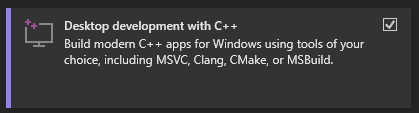 Make sure you have C++ enabled.
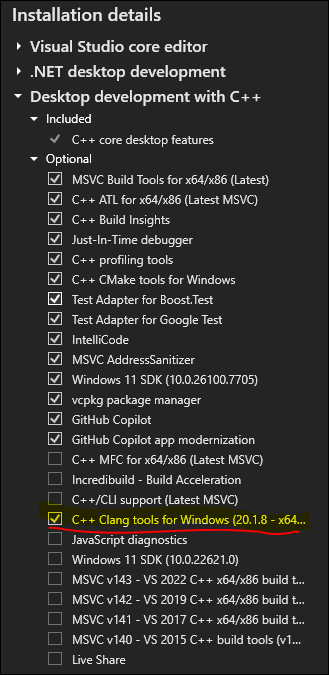 Enable clang tools for Windows.
Now you can install these things, and then wait until its done.
Building with Visual Studio
Assuming you have cmake and git installed, as well as Visual Studio, proceed to run the following command in powershell.
git clone https://github.com/occultlang/occult.git && cd occult
cmake -G ""
"Visual Studio 18 2026" is the version for Visual Studio 2026, so that would go where "" is.
If you don't have Visual Studio 2026, running cmake -G should just give you options to choose from.
Now once you've ran all those commands in powershell, open the occult.slnx file, it should be in the occult directory you just cloned.
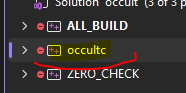
Once it's opened, you should see Solution Explorer, now left-click occultc and then click Alt + Enter to get to the properties menu.
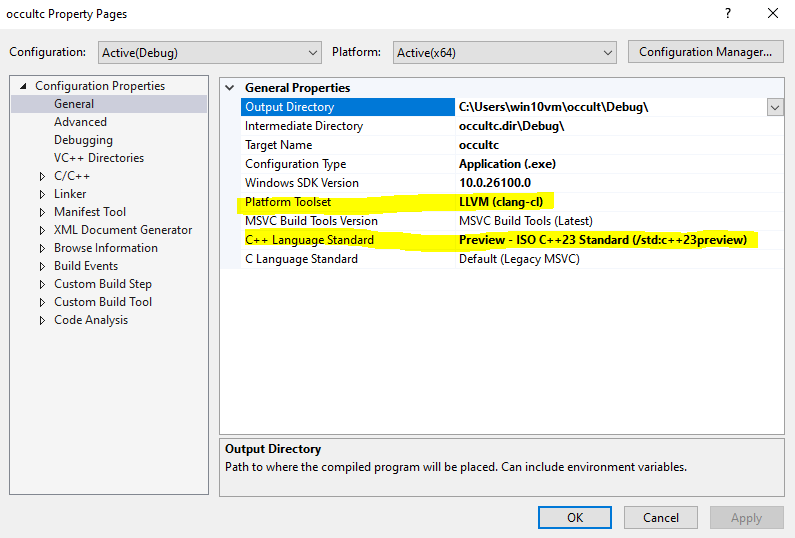
Once you're in the properties menu, you click Platform Toolset and change it to LLVM(clang-cl) and change the C++ language standard to C++23, and click apply.
Next, go to C/C++ then Command Line and you should see a field called Additional Options just delete everything in there, and click apply.
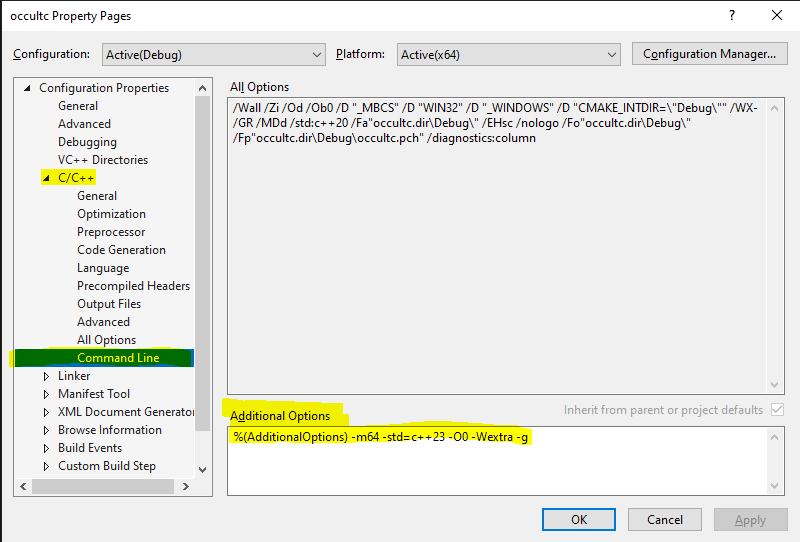
You should be able to build the project now, and it will succeed.
Running a Program
Now that you have a binary of the Occult compiler, you can start running programs! The binary on Linux should just be occultc and for Windows its occultc.exe.
The file extension for Occult code is .occ.
Compiler Options
occultc.exe for Windows.Running occultc -h will bring up a help menu.
Usage occultc [options] source.occ
| Options | Definition |
|---|---|
-t, --time |
Show's compilation time per stage |
-d, --debug |
Enables debug mode, implies -t |
-o, --output [file] |
Outputs a native binary (AOT) |
-j, --jit |
JIT Compilation (enabled by default) |
--abi [sysv/win64] |
Calling convention (default: host) |
-h, --help |
Show's the help message |
Hello World
The JIT mode is the default mode for the compiler, so let's get to running our first program!
You can create a new file called hello_world.occ and then copy and paste the script below.
import stdio from std;

fn main() {
	std::printf("Hello, World!\n");
}
Then run occultc hello_world.occ and then it should just print out Hello World!
Congratulations! You've ran your first Occult program! Now check out the Language Specification to learn more about the language!